
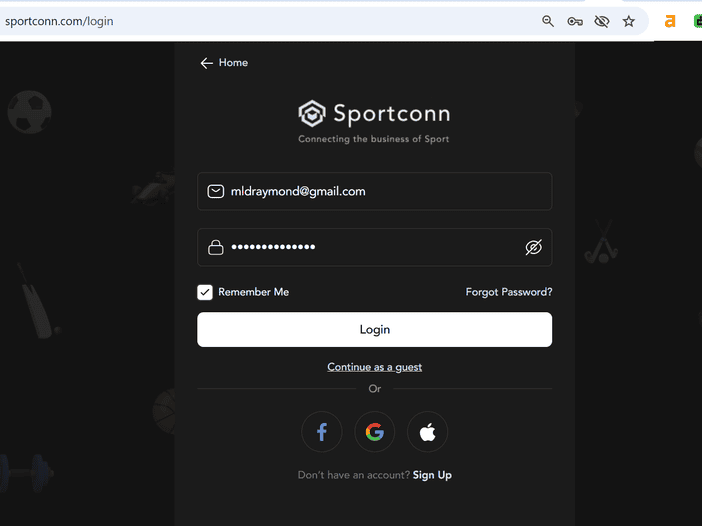
How to Post on Sportconn Social Feeds
Sharing posts on Sportconn Social Feeds is a great way to connect with the sports community, share updates, showcase exciting moments, and engage with other sports enthusiasts. Whether you want to share sports news, photos, videos, or your opinions, Sportconn makes it easy to create and publish content. Follow the step-by-step guide below to learn how to share a post on your Sportconn Social Feeds.
On Your Browser
Step 1: Visit the Sportconn website
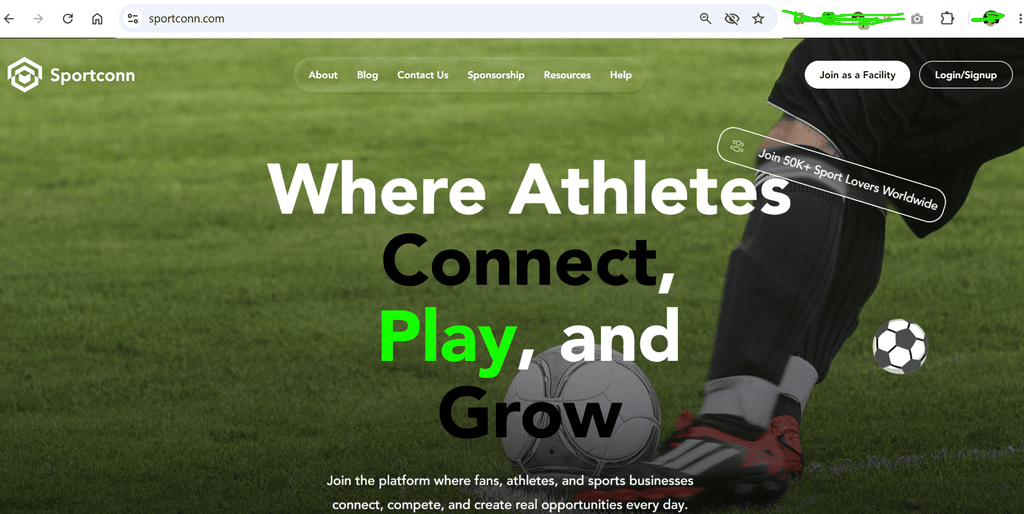
Open your web browser and visit www.sportconn.com.
On the homepage, click Login/Signup at the top-right corner of the screen.
Step 2: Log in/Sign Up to your Sportconn account
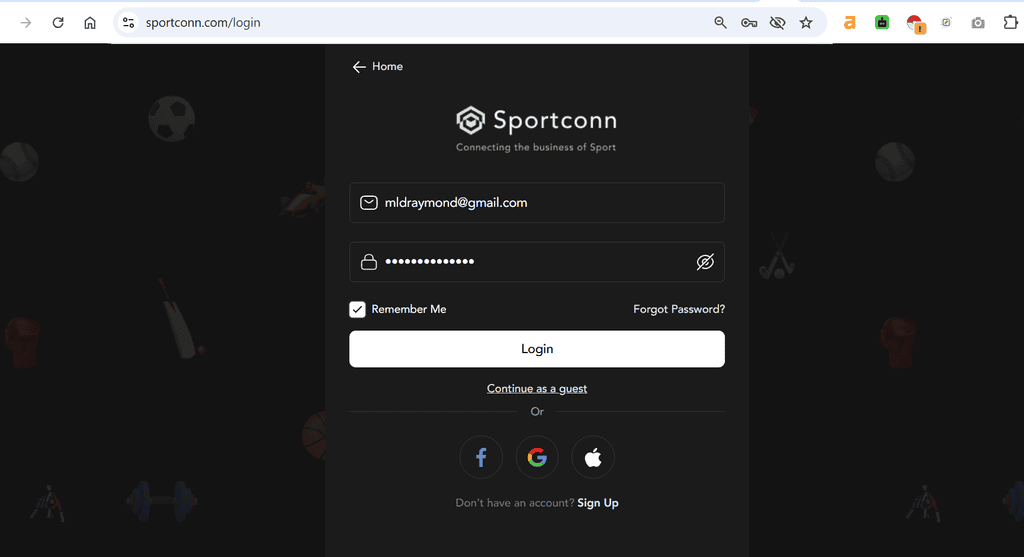
On the login page, enter your registered email address and password in the respective fields.
- Login: Click the Login button to access your account.
- Continue as a guest: Select this option if you want to access Sportconn without logging in.
- Remember Me: Leave this option checked if you want your login details saved for future visits.
- Forgot Password?: Click this link if you have forgotten your password and need to reset it.
- Sign Up: If you are new to Sportconn, click Sign Up to create an account.
You can also log in using your Google, Facebook, or Apple account by selecting the corresponding icon.
Once successfully logged in, you can access your Sportconn account and navigate to your social feed to share a post.
Learn more about how to sign up and create an on Sportconn here
Step 3: Navigate to Social Feeds
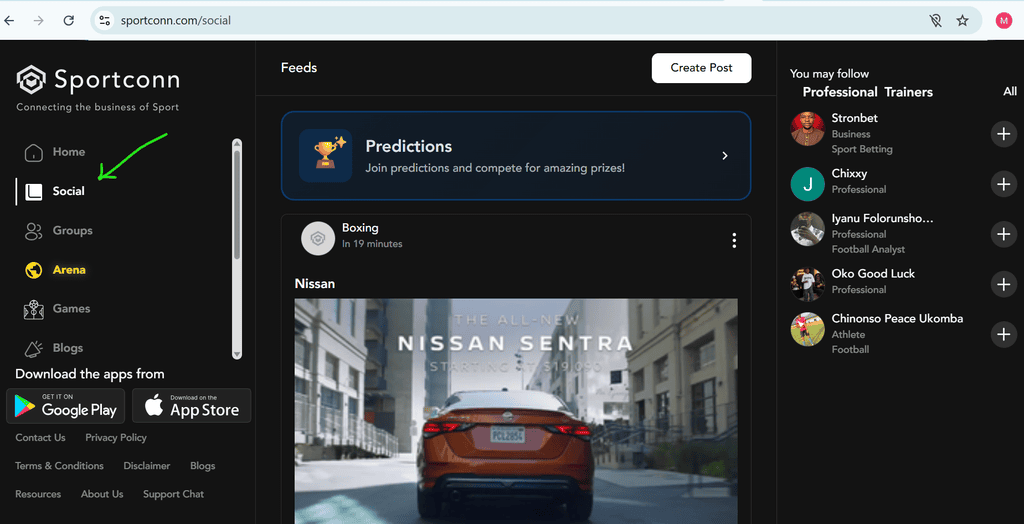
From your SportConn dashboard, click Social on the left-hand navigation menu. This will take you to your Social Feeds page, where you can view posts shared by other SportConn members and interact with the community.
Step 4: Click Create Post
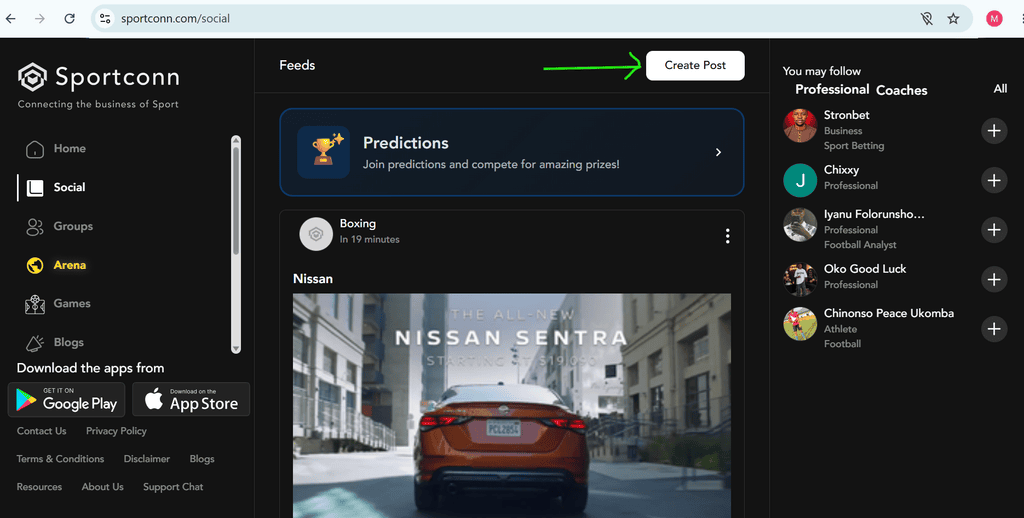
Once you are on the Social Feeds page, locate the Create Post button at the top-right corner of the page. Click it to open the post creation section, where you can start sharing your updates, sports news, photos, videos, and other content with the SportConn community.
Step 5: Add Photos/Videos and Write Your Description
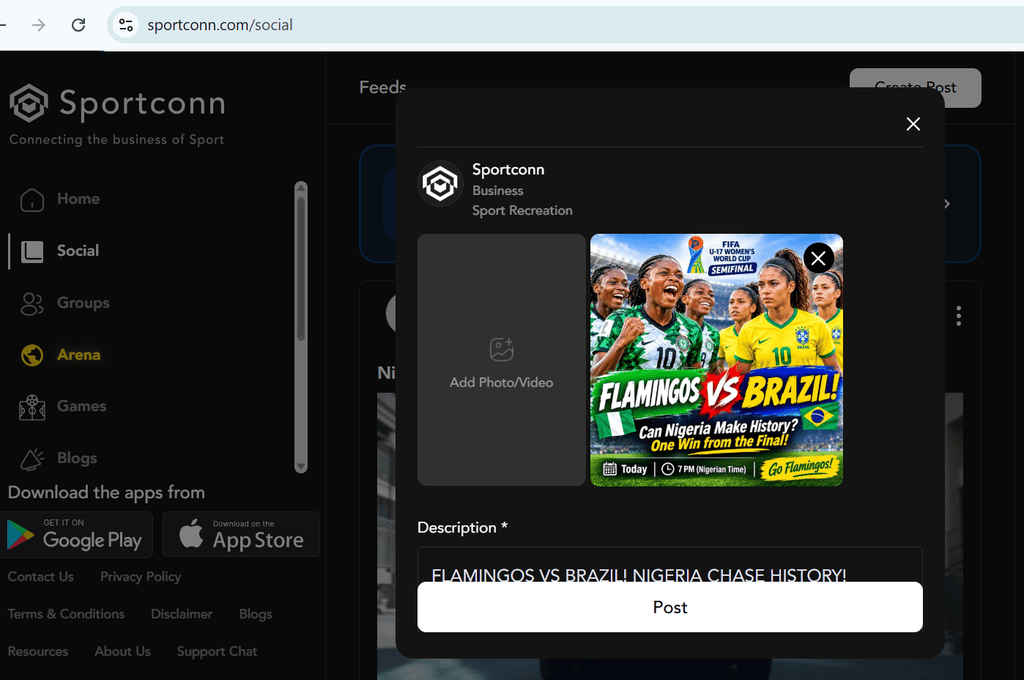
In the Create Post pop-up window, click the Add Photo/Video section to upload the image or video you want to share with the Sportconn community. Once your media has been uploaded successfully, locate the Description field and enter a caption or description for your post. You can use this space to share sports updates, news, opinions, or other relevant information you want your audience to see.
Step 6: Publish Your Post
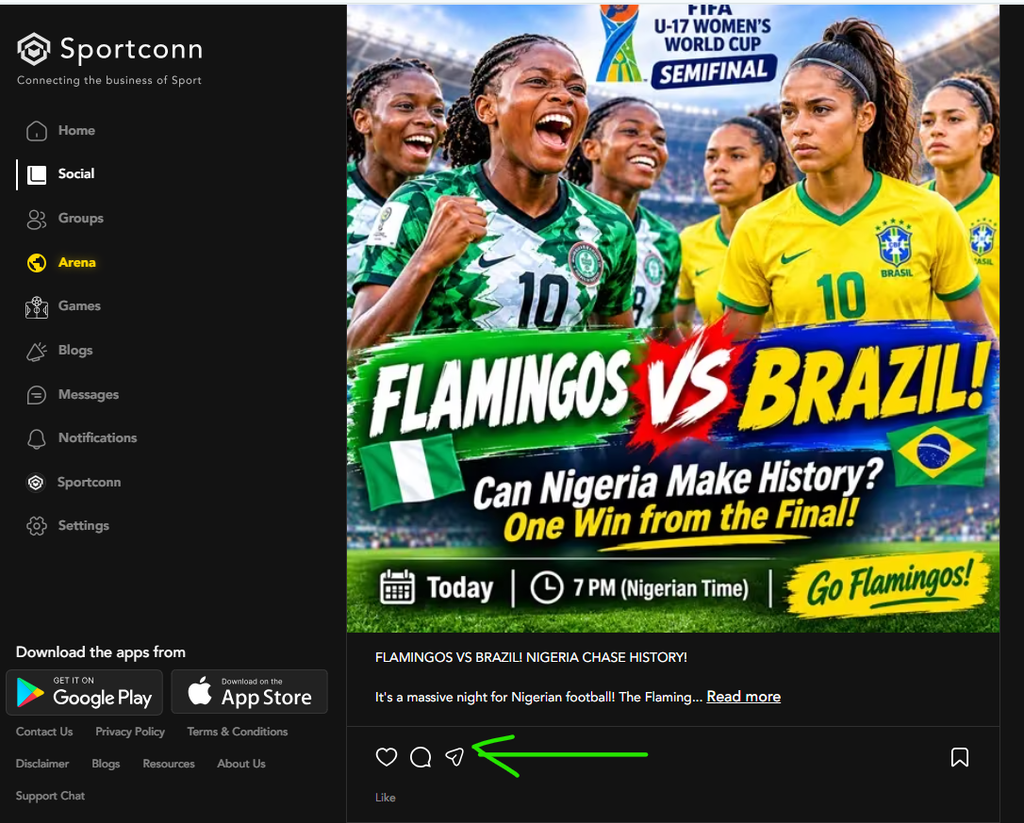
After uploading your photo or video and entering your description, review your content to ensure everything is correct. Once you are satisfied, click the Post button at the bottom of the pop-up window to publish your content. Your post will now appear on your Sportconn Social Feeds, where other members can view, like, comment on, and share it.
On Your Mobile Phone
Step 1: Download Sportconn App
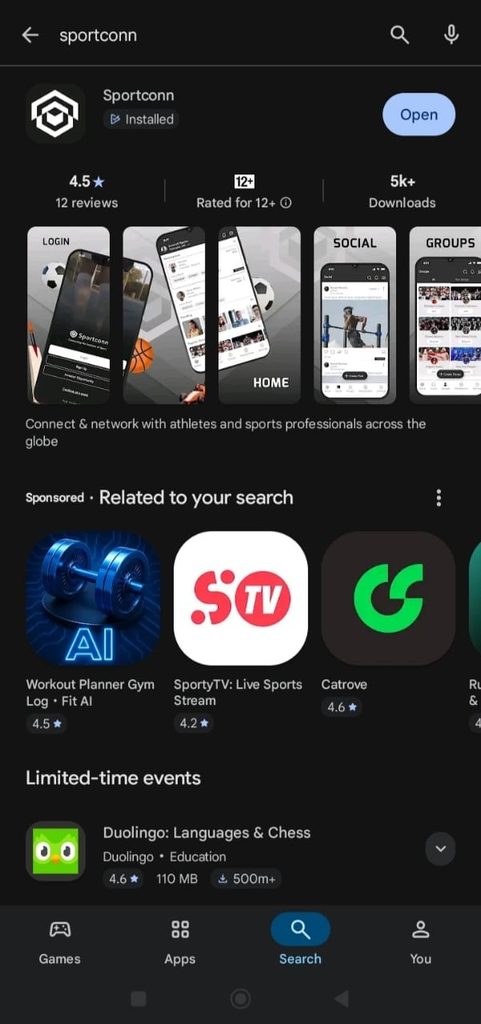
First, download the SportConn app on your mobile phone.
- Android users: Download from Google Play
- iPhone users: Download from the Apple App Store
Once the app is installed, open it to get started.
Step 2: Log in/Sign Up to your Sportconn account
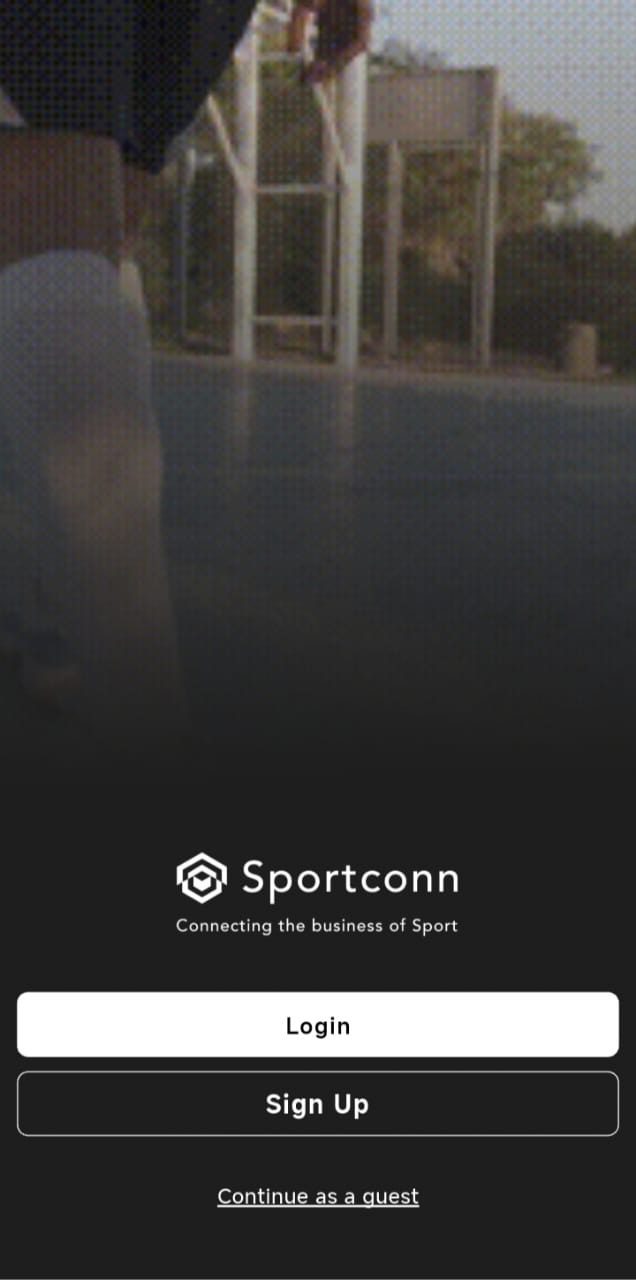
If you already have a SportConn account, enter your registered email address and password in the provided fields, then tap Login.
If you are new to SportConn, tap Sign Up to create an account.
You can also:
- Continue as a Guest: Browse SportConn without logging in.
- Remember Me: Keep this option checked to save your login details for future visits.
- Forgot Password?: Tap this link if you need to reset your password.
- Log in with Google, Facebook, or Apple: Choose any of these options to access your account.
Once you log in successfully, you can access your dashboard and start sharing posts.
Need help creating an account? Learn how to sign up on SportConn here.
Step 3: Navigate to Social Feeds
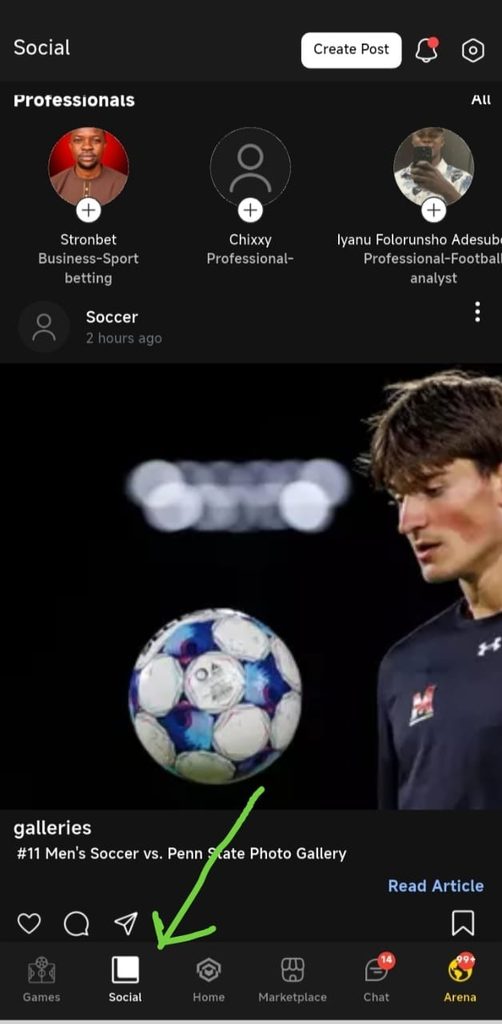
From your SportConn dashboard, click Social on the bottom navigation menu. This will take you to your Social Feeds page, where you can view posts shared by other SportConn members and interact with the community.
Step 4: Click Create Post
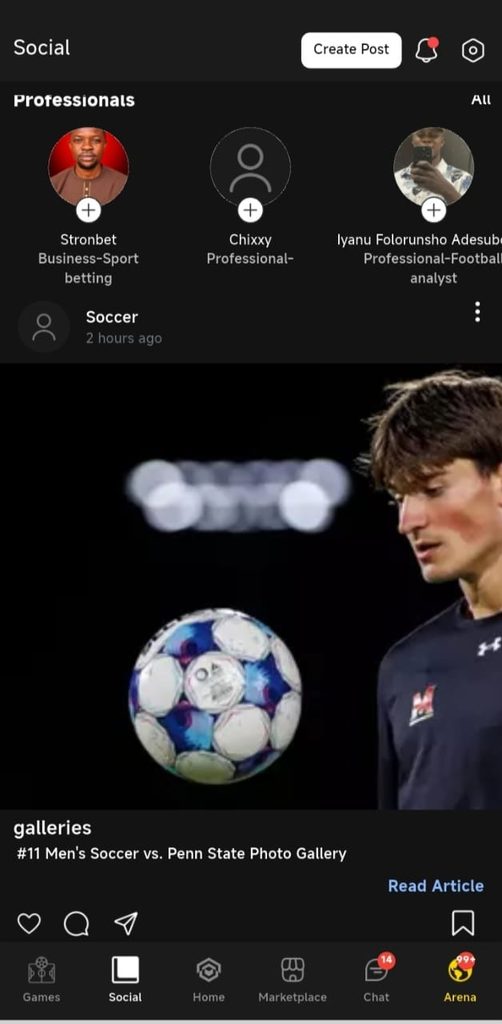
On the Social Feeds page, look for the Create Post button at the top-right corner of the page.
Tap the button to open the post creation window. This is where you can start creating your post.
Step 5: Add Photos/Videos and Write Your Description
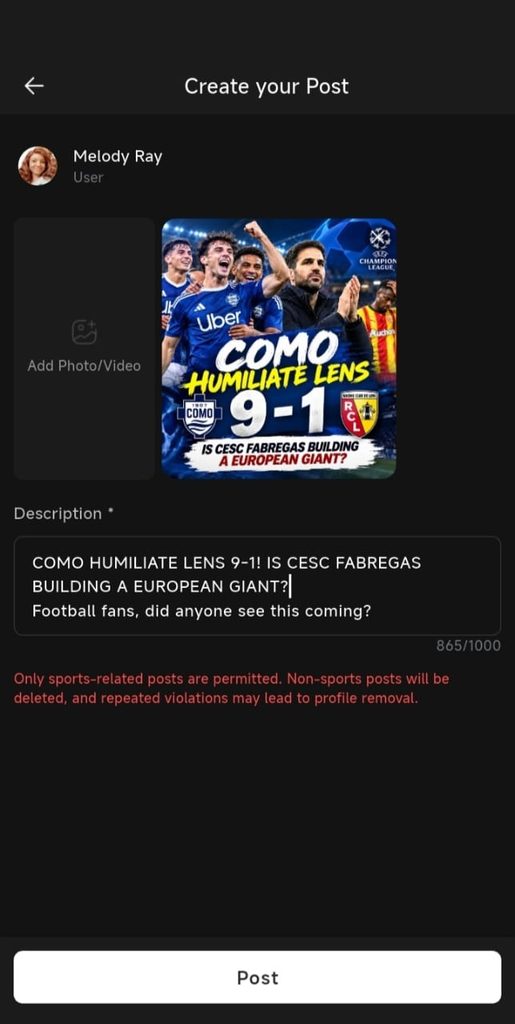
Now it’s time to create your post.
- Upload Photos or Videos: Select the photos or videos you want to share from your phone.
- Write Your Description: Add a short message explaining what your post is about. You can share sports news, match updates, personal experiences, opinions, or anything relevant to the sports community. Keep your description between 100 to 1000 characters.
Take a moment to check that your photos, videos, and description are correct before publishing.
Step 6: Publish Your Post
Once you are happy with your post, tap the Post button at the bottom of the pop-up window.
That’s it! Your post will be published on SportConn Social Feeds, where other members can view, like, comment on, and share it.
Start sharing, connect with other sports fans, and be part of the SportConn community!
Congratulations!
You have successfully learned how to create and share a post on Sportconn Social Feeds. By following these simple steps, you can keep the community updated, share your passion for sports, and engage with other members through likes, comments, and shares. Log in to your Sportconn account today and start sharing your sports moments with the community!